
Our App In-Depth: How to Use the Community Wall
07.07.2020 |
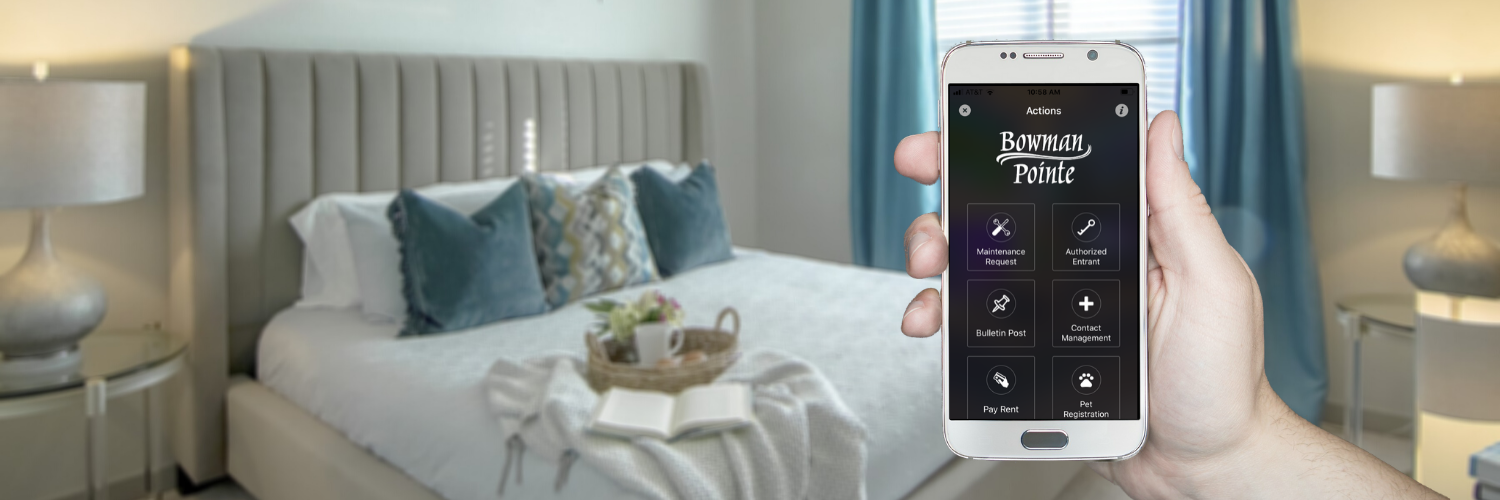
This blog post was updated on November 22, 2021, to reflect new features offered by the ActiveBuilding app.
Technology is everything these days, especially when you have a global pandemic keeping you from all the social activities you’re used to enjoying. You need social media, video conferencing, virtual games and more to keep you connected to friends and up to date on the latest news.
That’s why we are proud to have such an awesome resident app with amazing features that make contactless communication possible. It’s life-changing!
One feature you may not have tried in the app yet is the Community Wall. There, you can see what your neighbors are posting about, respond to them directly, and make your own posts, too.
It’s the perfect place to start conversations, share ideas, offer resources, and even sell stuff.
We’ve already shown you how easy it is to reserve an amenity or submit a service request using our resident app, and now we want you to see what the Community Wall can do. Let’s go!
STEP #1: GET THE RESIDENT APP
To use Bowman Pointe Community Wall, you need to download our resident app.
If you don’t already have it on your phone or tablet, just search for “Active Building” in the App Store or Google Play Store.
Once you download the app and enter your personal information, it will confirm your resident account here at Bowman Pointe and allow you to open the app.
STEP #2: OPEN THE COMMUNITY WALL
Now that you’re logged in, finding the Community Wall is super easy. Just tap on the three lines in the upper lefthand corner of your screen to open the menu and scroll down to the Community Wall tab.
Tap there to open our Community Wall, which you will see is very similar to the home feed of a social media platform.
STEP #3: MAKE A POST
Ready to make your own post on the Community Wall? The post creator is conveniently located at the top of your screen!
You can share a general update, an item you have for sell, a local business recommendation, or even a poll. If you have a photo to share, you can attach it to your post!
STEP #4: SUBMIT A POST
When you tap Post, your post will be submitted to our staff for approval.
We will then review your post to make sure it follows our community guidelines, and then approve or deny the posting accordingly.
STEP #5: INTERACT WITH YOUR POST
If we approve your post, it will be live on the Community Wall for your neighbors to see and respond to.
They can like and comment on your post, and you can respond to them to keep the conversation going!
Now that you know how to use the Community Wall on our handy resident app, we hope you use it more often to communicate with your neighbors!
It’s a fun and easy way to engage with others across our community while remaining socially distant.
If you have any questions about the Community Wall, or any other feature on the ActiveBuilding app, feel free to send our team a message or give us a call at 501.725.9055.